Yes. AI can add virtual staging to a listing video, and it's allowed as long as you disclose it and the staging doesn't misrepresent the property. Adding movable furniture or decluttering is generally fine with a label, while changing walls, floors, views or hiding defects is not. California's AB 723, the big MLS rules and the NAR Code of Ethics all draw the line in about the same place, and one MLS, ARMLS in Arizona, already names video in its rule.
VidListings makes a listing video tool, mentioned below. We've tried to keep this guide useful whether or not you use it.
How does AI add virtual staging to a listing video?
There are two ways to do it.
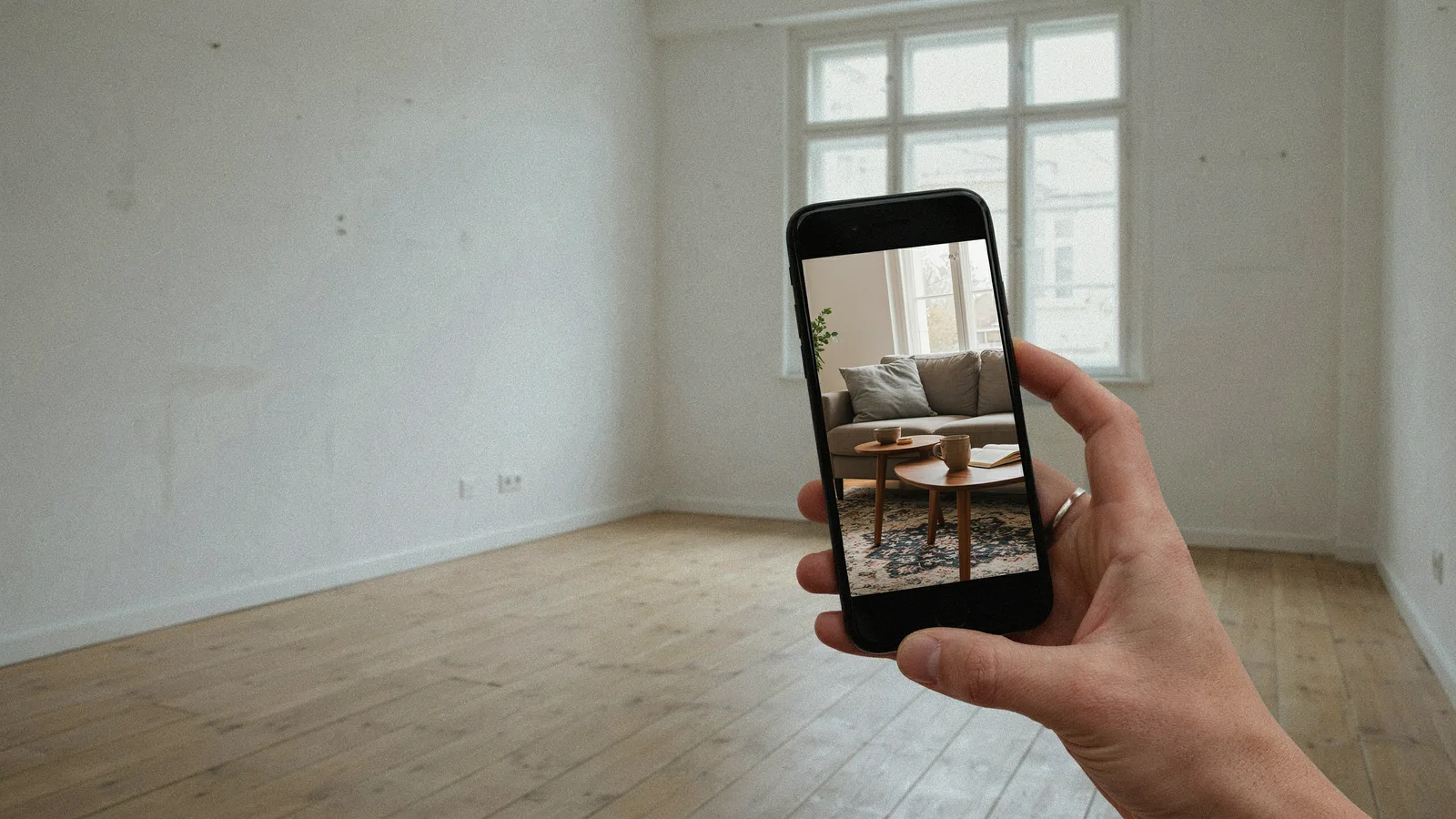
- Stage the photo, then animate it. You stage or declutter a still photo, check it, and then turn it into a short clip. What buyers see in motion is the staged photo you approved.
- Let a video model furnish the room as it moves. Some generative video tools add furniture while the camera moves. This is harder to control, because the model decides what to draw frame by frame and can change things you didn't ask for.
The first route is easier to check and easier to disclose, because you have a clear before and after. Either way, the result is a digitally altered picture of the home, and the rules below apply. For the basics of staging stills, see our virtual staging guide.
What can you virtually stage in a listing video, and what's off limits?
Rules differ by MLS, but they land in a similar place. MLS Now Rules Section 3 allows staging with movable items, minor cosmetic edits and sky replacement that doesn't materially change views. It prohibits changing permanent or structural features, size or views, and hiding defects. The CRMLS digitally altered images FAQ says you can't alter real property elements such as floors, walls, paint, landscape, views or utility poles unless the work will be done before closing, and it does not allow AI-generated landscaping.
| Edit | Where it usually lands |
|---|---|
| Adding furniture, rugs, art, lamps to an empty room | Allowed with a label |
| Removing clutter and personal items | Allowed with a label |
| Swapping a grey sky for a blue one | Allowed in MLS Now with a label, if views don't materially change |
| Brightness, color correction, cropping | Not counted as "altered" under AB 723 or ARMLS |
| New floors, paint, walls, counters or windows | Not allowed unless the work will be done before closing (CRMLS) |
| New or changed views, water, skyline or trees | Not allowed |
| AI-generated landscaping | Not allowed in CRMLS |
| Hiding cracks, stains, damage or utility poles | Not allowed |
A simple test: if a buyer walks in and finds something permanent that looks different from the video, you went too far.
What do the rules say about virtually staged listing videos?
Here is where things stand as of October 2026. Most rules were written for photos. Only ARMLS mentions video by name.
California AB 723
AB 723 added Business and Professions Code section 10140.8 and took effect January 1, 2026 (bill status). Brokers and agents who use a "digitally altered image" in an ad must put a conspicuous statement on or next to it saying it was altered, plus a link, URL or QR code to the unaltered original. On websites they control, they must include the original or link to it.
An image counts as altered when software or AI adds, removes or changes elements such as furniture, appliances or walls. Lighting, color and cropping are excluded. The law says "image" and doesn't mention video. A staged room inside a clip is still an altered picture of the home, so the cautious reading in California is to label the video and link the original photos.
CRMLS Rule 11.5.2
CRMLS asks you to upload the original photo right before or after the altered one and label the altered version with words like "Virtually Staged", "Digitally Altered" or "AI Altered" (CRMLS FAQ, updated February 13, 2026).
ARMLS Rule 8.23
ARMLS Rule 8.23 is the one that names video. Adding, removing or significantly changing content with software or AI counts as altered; brightness, contrast, color, crop and sharpening are exempt. For photos, you use the Flexmls "Digitally Altered" disclosure and upload the original before or after. For videos and virtual tours, you need an ARMLS-approved "Digitally Altered" watermark or the words "Digitally Altered" in the description. The rule took effect May 28, 2026. Fines are waived from June through November 2026, and a $200 fine applies from December 2026.
MLS Now Rules Section 3
Besides the staging limits above, MLS Now requires the primary photo to be a current, unaltered exterior.
NAR Code of Ethics, Standard of Practice 12-10
Article 12 of the 2026 Code of Ethics asks Realtors to present a "true picture". Standard of Practice 12-10 covers internet content and images and bars manipulating listing content in a way that's deceptive or misleading, including misleading images. It doesn't name virtual staging or AI, but an unlabeled staged room is the kind of image it describes.
We didn't find an MLS rule written specifically for AI-generated video. Florida Realtors recommended disclosing and labeling AI listing videos in an August 31, 2026 article. Your MLS may have its own wording, so check it before you post. This guide is general information, not legal advice.
How do you disclose virtual staging in a listing video?
Use this checklist for every staged video.
- Label the clip on screen. Put "Virtually Staged" or "Digitally Altered" on each staged clip, not only at the end. Viewers on Reels and TikTok may never see the last frame.
- Say it in the text too. Add the same words to the post caption and the video description. For ARMLS, the words "Digitally Altered" in the description meet the video rule.
- Keep the original photo. Save the unstaged version next to the staged one so you can upload or link it on request.
- In California, link the original. Put a link, URL or QR code to the unaltered photos next to the video, for example in the caption or on your listing page.
- Don't stage the MLS primary photo. Open the video on a real exterior too, so the first frame matches the home.
- Stage only movable things. Furniture, rugs, art and decluttering. Leave floors, walls, windows, views and landscaping as they are.
- Check every staged clip. Pause on it and compare it with the staged photo you approved. Generative video can add or change details on its own; our guide to AI real estate videos without fake rooms has a frame-by-frame checklist.
- Keep the MLS version plain. For the virtual tour field, export an unbranded version and follow your MLS's labeling rule for altered video.
How does VidListings handle virtual staging?
In VidListings, staging is opt-in. A normal clip moves your real photo with a 3-second camera move, such as Dolly in, Slide left or Crane up. It does not add rooms, views, furniture or finishes, so a video made only of normal clips shows the home as photographed.
Two features change a photo on purpose, and you have to choose them:
- Restage. You type an instruction, such as furnishing an empty room, decluttering or adding a blue sky. The edited photo is a candidate. It only replaces your original if you pick "Use this photo".
- Empty to furnished. An optional effect you apply to a single photo.
Other optional effects (Grey to sunny, Day to night, For Sale sign, Sold sign) also change the photo. A new sky or a night scene can go beyond the lighting adjustments AB 723 and ARMLS exclude, so label those clips too.
When you use any of these, add the label yourself with a heading or caption box on that clip in the editor, and put it in your post text.
What should you check before you post?
- The candidate photo at full size. AI staging can change a window, a floor color or a light fixture along with the furniture. If it did, don't use it.
- Scale. Furniture that's too small makes a room look bigger than it is. Pick pieces that fit the real room.
- Every place the video goes. Social posts, your website and email need the label too, not just the MLS.
If you want staged photos to start from, our roundup of free AI virtual staging tools compares the options, and our real estate video editing guide covers adding text and music.
If you want a listing video that moves your real photos and only stages a room when you choose to, VidListings is free to start.